
Claude Context Window: Why Your AI Forgets in a Long Chat
November 6, 2026
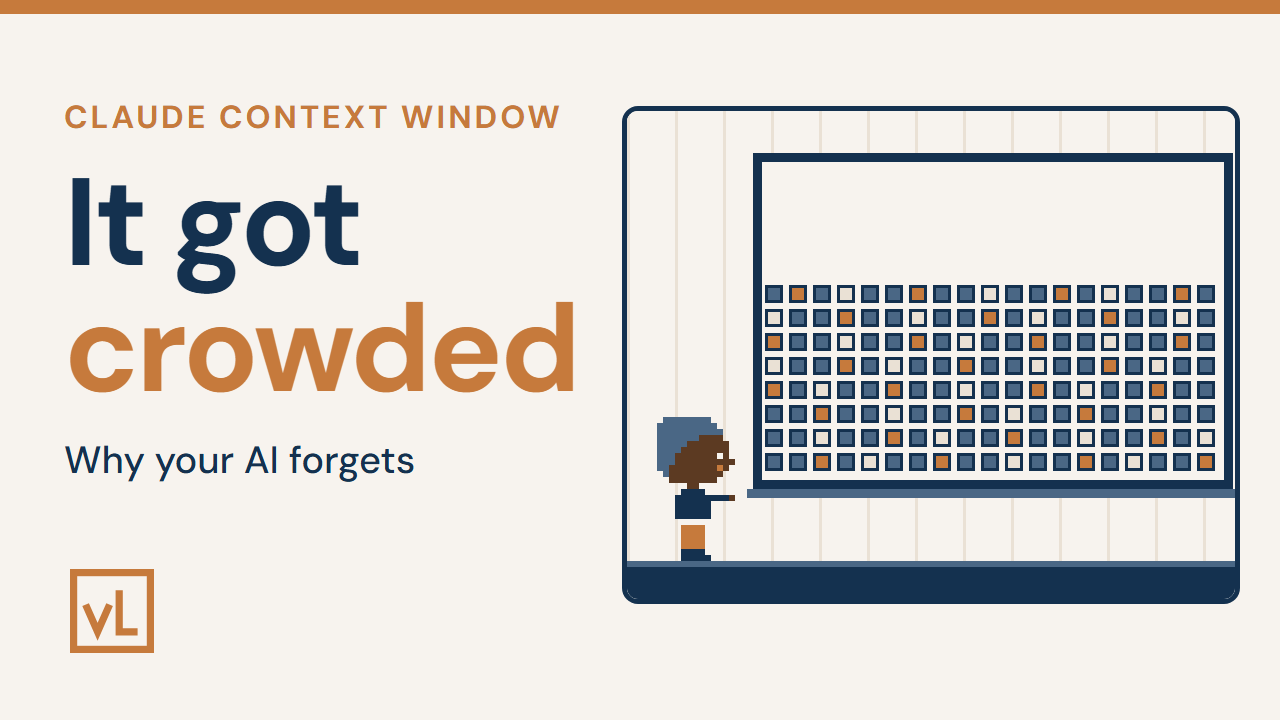
This is the video behind the post. Step 4 is the story of Frank’s font. You watch 1 font change go wrong for a whole team, and that’s the reason the fix is a folder and not a better chat.
The Claude context window is the AI’s working memory for 1 chat. Your messages go in there. Its answers go in there. Every file it reads goes in there.
And it has a size.
When it gets full, your AI doesn’t get dumber. It gets crowded. That’s why it forgets.
You can’t make it remember. You can give it a folder to read.
Why your AI forgets in a long chat
You’ve been in a chat with AI for an hour. You gave it your prices and your rules. Then you ask about something you told it at the start.
And sometimes it just makes something up.
It doesn’t say “I don’t know.” It just puts something in there. And you might not even notice.
You think the AI got dumber the longer you talked. It didn’t. It got crowded. (0:26 in the video)
How the Claude context window fills up
Step 1: Know the window
AI doesn’t read words the way you do. It reads tokens, small chunks of text. A short word is often 1 token. A long word can be a few.
Then it predicts the next token, and the next, and the next. It’s very good at it.
But without context, it goes with whatever sounds right. It still sounds good. It’s just not the right word for your business.
Context is what points it at the right one. All of that context sits in 1 place, the context window. (1:45)
I use Claude. Claude is an AI made by a company called Anthropic. Claude Code is a tool that helps Claude work with files on my computer.
The newest Claude models hold up to 1 million tokens (Anthropic, context windows). That sounds like a lot.
It fills up faster than you think. Every message you send makes the window fuller.
Step 2: Watch the fill
Picture a whiteboard in a meeting. You keep writing until there’s no room. So somebody erases the top to make space.
Something like that happens when the window fills up.
In the Claude chat app, the oldest part can get dropped or summarized. In Claude Code, it summarizes the older part as it gets close to full. Either way, some detail can get lost.
And when it needs something you said earlier, it’s built to give you an answer. So it may just put something in. Something made up and stated as fact is called a hallucination.
That can happen in a fresh chat too. Why it happens there is a different story, and I wrote it up in why does AI make things up.
A crowded window makes old details harder to recall. So don’t wait for it to warn you. You look.
In Claude Code, type /context. It shows you how full the window is (Claude Code, explore the context window). (3:16)
My rule of thumb is to stay in the first 2/3. Anthropic says that as the window fills, accuracy and recall drop. They call it context rot.
So before it gets full, you’ve got 2 moves.
- Type /compact, and tell it what to keep.
- Or ask it for a handoff, a summary for a fresh chat. Check it, then paste it into the fresh chat.
The mistake is 1 chat for everything, all week. The right move is 1 job per chat, and a fresh chat when the job changes.
And don’t keep the only copy of anything in the chat. Hold on to that one. It comes back in step 4.
Feed it light, and keep 1 copy of every fact
Step 3: Feed it light
A PDF looks clean to you.
For a PDF up to 100 pages, Claude gets the text of every page. It also gets a picture of every page. Anthropic says the text alone is typically 1,500 to 3,000 tokens a page, and the pictures use more on top of that (Anthropic, PDF support). (4:10)
So for anything that’s just words, use Markdown instead.
Markdown is just a plain text file. It’s the words and a few symbols. You can open one in a plain text editor like Notepad. There’s no hidden layout. You see what’s there.
AI doesn’t care if it looks pretty. All it cares about is what’s in there.
The mistake is dropping your price book PDF into every chat. The right move is saving the words once as Markdown. Same words, no page pictures.
Step 4: One home for every fact
Maybe you use a Claude Project. That’s a workspace in the chat app that keeps your instructions and files together. It’s easy, and it looks nice. Unless you share it, it’s just yours.
The problem starts when everybody keeps their own copy.
Here’s what happened to Frank’s font. (5:18)
You put the brand guide in your Project. Your office manager puts it in hers. Frank, your estimator, puts it in his. Pretty soon, everybody has their own copy of the brand guide.
Then you change the company font. You change it in yours.
You ask Frank for a quote sheet in the company font. He makes it in his Project, with his copy. It comes back in the old font.
That’s drift. The copies drift apart, and the fix is you walking around to every one of them.
The right move is 1 shared folder with 1 copy. That’s your single point of truth. Change the font there, once.
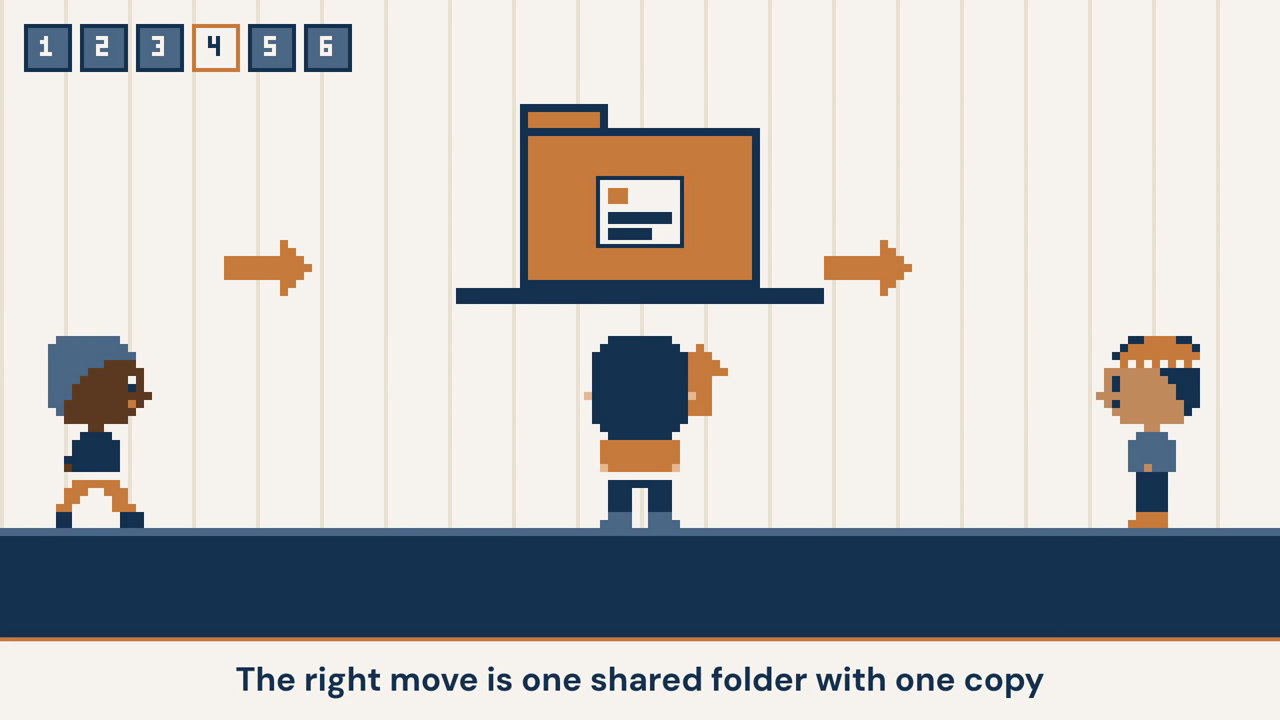
Next time, Frank tells Claude Code to read the shared brand guide. He doesn’t have to update a thing. He still checks the quote sheet before it goes out.
Remember the one from step 2? Anything you’ll need again lives in the folder. A long chat can lose detail. A file stays right where you put it.
Put a map on top of the folder
Step 5: Put a map on top
Think of the directory board at a mall. You don’t walk past every store. You read the board and go straight there.
So at the top of the folder, I put 2 short files.
- CLAUDE.md is the map. Claude Code reads it when you start it in that folder (Claude Code, explore the context window).
- CONTEXT.md is my own file. It says what the folder does.
The map points it to the files it needs. So it doesn’t have to read the whole folder. (6:47)
Now you just ask it in plain words. “Make me a Remembrance Day post using our brand guide.” The map points it to the brand guide.
For bigger jobs, number the folders in the order the work goes. Write each folder’s job and order in the map. That’s a workflow, the same steps every time. Ask it to follow that order, and check each step.
If you want to see what a good note for 1 folder looks like, I wrote about the 4 lines an AI can follow.
People are setting up whole teams of AI helpers for this. You don’t need that. You need a folder structure.
This method comes from Jake Van Clief and David McDermott. You can read their paper. I call it the folder method. (7:33)
Keep your hand on the send button
Step 6: Keep your hand on the send button
Think of a new hire. Smart and fast, and still learning. You check their work before it goes to a customer.
Same rule here.
AI never sends anything without your OK. Not an email, not a post, not a file.
Remember step 2. It’s built to answer, so it may fill the gaps. 1 weird line, and all of a sudden it’s out there.
You’re the human in the loop. You’re the last set of eyes before anything goes out.
The mistake is turning on the setting that lets it send on its own. The right move is simple. It drafts, you read, you send. (8:34)
Skip step 4, and your map can point to an old copy.
Your move this week: save 1 file
Here’s your move this week. (8:58)
- Pick 1 thing you’ve pasted into 3 chats.
- In Notepad, save it as rules.md in a shared folder.
- Next time, tell Claude Code where it is and ask it to read it.
Keep it to rules and prices. No customer names or details, because everyone with the folder can read it.
The next time you need it, you point Claude Code at it instead of pasting it again.
I teach this step by step in my Skool community. Skool is where my community lives. It’s called See It, Build It, Own It.
Open your last long chat tonight and find the thing you keep pasting.
I’m in Your Corner. Now, Go Own It.